
Key takeaways
- Screen size: 32 inches, diagonal
- Resolution: 1920×1080 (Full HD)
- Panel type: VA
- Refresh rate: 100Hz
- Vertical alignment stand class, VESA-compatible mounting
- Typical role: desktop replacement and document workspace
Top 3 Picks
The best overall Big Spring Sale monitor deal under $200 for most people is the Philips 24 Inch FHD 120Hz IPS (24E2N2100) — a 24-inch 1080p IPS panel with a 120Hz refresh rate, VESA mounting, and flicker-free eye care that suits students, office workers, and light gamers on a compact desk. The Philips 22 Inch FHD 100Hz VA (221V8LB) is the best budget pick when money and desk space are the tightest constraints. The Philips 32 Inch FHD 100Hz VA (32E1N1100L) is the best premium-shelf choice for buyers who want maximum screen area for multi-window work rather than pixel density.
Quick Comparison
| Product | Best For | Panel / Resolution / Refresh | Size & Mounting | Price Tier |
|---|---|---|---|---|
| Philips 32 Inch FHD 100Hz VA (32E1N1100L) | Big-screen multi-window productivity on a wide desk | VA, 1920×1080, 100Hz | 32 in; VESA-compatible stand class | Premium |
| Philips 24 Inch FHD 120Hz IPS (24E2N2100) | All-round daily driver: study, work, casual gaming | IPS, 1920×1080, 120Hz | 24 in; VESA-compatible | Budget |
| Amazon Basics 23.8-inch 1080P 120Hz | Cheapest way to get 120Hz with HDMI, DisplayPort and VGA | IPS-class, 1920×1080, 120Hz | 23.8 in; VESA compatible | Budget |
| Amazon Basics 27 Inch FHD 100Hz IPS with Speakers | Shared family desk and cable-light setups | IPS, 1920×1080, 100Hz | 27 in; VESA compatible; built-in speakers; USB ports | Premium |
| Amazon Basics 27-inch 120Hz IPS | Fastest 27-inch option in this bracket | IPS, 1920×1080, 120Hz | 27 in; VESA compatible | Mid-range |
| Philips 22 Inch FHD 100Hz VA (221V8LB) | Smallest desks and lowest budgets | VA, 1920×1080, 100Hz | 22 in; VESA; flicker-free | Budget |
| Philips 27″ FHD 100Hz VA (271V8LB) | Contrast-first movie and document viewing at 27 inches | VA, 1920×1080, 100Hz | 27 in; VESA; eye-care class | Mid-range |
How We Chose
This roundup applies four selection criteria to every model in the bracket. First, specification fit: each panel had to be a real 1080p Full HD screen in the 22 to 32 inch range with a refresh rate of at least 100Hz, because 60Hz panels offer no meaningful advantage once 100Hz and 120Hz hardware sits at the same price tier.
Second, category fit: each pick had to fall into a clear role — entry budget, mainstream mid-range, or premium big-screen — so buyers are never comparing two products that occupy the same slot.
Third, use case: the list covers the four things budget monitor buyers actually do — document and spreadsheet work, study and video calls, casual gaming, and shared family or living-room use. A pick that could not serve at least one of those roles well was left out.
Fourth, upgrade path: we favoured models with VESA mounting and standard video inputs, because a monitor arm or a second screen is the most common next purchase. We did not test, benchmark, or own any of these products. Everything here is based on published manufacturer specifications, listing details, and well-established panel-technology behaviour.
1. Philips 32 Inch FHD 100Hz VA (32E1N1100L) — Best for Large-Screen Multi-Window Productivity
As an Amazon Associate we earn from qualifying purchases at no extra cost to you.

This is the biggest canvas in the roundup. A 32-inch 1080p VA panel at 100Hz suits buyers who keep three or four windows open at once and would rather have physical screen area than sharpness per inch. On a wide desk, it can replace a dual-monitor setup with a single panel and one cable run.
Key specs
- Screen size: 32 inches, diagonal
- Resolution: 1920×1080 (Full HD)
- Panel type: VA
- Refresh rate: 100Hz
- Vertical alignment stand class, VESA-compatible mounting
- Typical role: desktop replacement and document workspace
Strengths
VA panels are chosen for contrast, and at 32 inches the deep blacks make dark-mode interfaces, streaming video, and evening use noticeably more comfortable than a same-size IPS panel with weaker black levels. The 100Hz refresh rate is a real step up from legacy 60Hz office screens: cursor movement, window dragging, and scrolling all look smoother, and it is enough headroom for casual gaming without a dedicated graphics card.
The size is the headline feature. Thirty-two inches gives roughly the usable area of two 22-inch 1080p displays side by side, which means one power cable, one video cable, and one stand footprint instead of two of each. For renters, small home offices, and anyone who dislikes cable clutter, that consolidation is the actual value.
Pros
- Largest viewing area in this roundup
- VA contrast makes dark content and dark interfaces look rich
- 100Hz is smoother than the 60Hz panels still sold at this size
- Replaces a dual-monitor arrangement with one screen and one cable set
- VESA-compatible, so a desk arm is a realistic upgrade
Cons
- 1080p stretched across 32 inches gives the lowest pixel density here — around 69 pixels per inch — so text edges look softer than on a 24-inch 1080p screen
- VA viewing angles are narrower than IPS; colours shift when you sit far off-centre
- VA panels typically show more dark-level smearing in fast motion than IPS
- Needs a desk at least 70cm deep to sit at a comfortable distance
How it compares with the nearest alternative
The nearest alternative in this list is the Philips 27″ FHD 100Hz VA (271V8LB). Both use VA for contrast and 100Hz for smoothness, so the decision comes down to pixels per inch versus total area. The 27-inch model runs about 82 pixels per inch, which is visibly crisper for reading long documents, while the 32-inch gives roughly a third more screen area for the same resolution. If your day is mostly text, take the 27-inch. If your day is spreadsheets, timelines, chat windows and video side by side — and you sit at least arm’s length away — take the 32-inch.
2. Philips 24 Inch FHD 120Hz IPS (24E2N2100) — Best for All-Round Daily Use
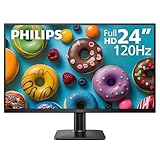
A 24-inch 1080p IPS panel at 120Hz is the most balanced combination in this bracket. It is what we would point most buyers to first: sharp enough for text, colour-accurate enough for photo editing at a casual level, smooth enough for gaming, and small enough for a compact desk.
Key specs
- Screen size: 24 inches, diagonal
- Resolution: 1920×1080 (Full HD)
- Panel type: IPS
- Refresh rate: 120Hz
- VESA-compatible mounting
- Flicker-free, low blue mode eye-care class
Strengths
At 24 inches, 1080p works out to roughly 92 pixels per inch. That is the sweet spot where text rendering stays clean without any operating-system scaling, so windows, menus and web pages all look their intended size. Nothing needs to be resized, which matters more than most buyers expect: scaling on a larger 1080p panel is where budget setups usually feel wrong.
IPS delivers the widest viewing angles of the mainstream panel types, so colours stay consistent when two people watch, when you lean to one side, or when the screen sits off-axis on a shared desk. The 120Hz refresh rate is the highest in this roundup alongside the Amazon Basics 120Hz models, and it noticeably improves scrolling, cursor tracking, and motion clarity compared with 100Hz or 60Hz.
Pros
- Sharp text at native 1080p with no scaling needed
- IPS viewing angles hold colour across a shared desk
- 120Hz is the smoothest refresh rate in this list
- Eye-care features reduce flicker during long sessions
- 24-inch footprint fits narrow desks and small rooms
- VESA-compatible for a future arm or wall mount
Cons
- IPS contrast is weaker than VA, so blacks look grey in a dim room
- Smaller screen area than any 27-inch or 32-inch option here
- 1080p at 24 inches is mainstream, not high density
- Built-in speakers are not listed, so plan for external audio
How it compares with the nearest alternative
The closest competitor is the Amazon Basics 23.8-inch 1080P 120Hz. They share the same resolution, refresh rate class, approximate diagonal size, and VESA compatibility, so the differences are inputs and finish. The Amazon Basics model lists HDMI, DisplayPort and VGA — useful if you are connecting an older office PC or a legacy dock — while the Philips leans on its eye-care and image-processing heritage. If your devices are modern, either works; if you have a VGA-era machine in the mix, the Amazon Basics unit is the more flexible pick.
3. Amazon Basics 23.8-inch 1080P 120Hz Monitor — Best Budget Pick for Input Flexibility
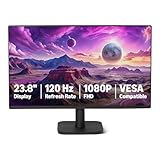
This is the cheapest route into a 120Hz 1080p screen in this roundup, and it is the one to choose when you have mismatched hardware. HDMI, DisplayPort and VGA on the same panel means it can serve a modern laptop, a gaming console, and an older desktop without adapters.
Key specs
- Screen size: 23.8 inches, diagonal
- Resolution: 1920×1080 (Full HD)
- Refresh rate: 120Hz
- Inputs: HDMI, DisplayPort, VGA
- VESA compatible
- Designed for office and home use
Strengths
Three input types is unusually generous in this price tier, and it solves a real problem. VGA still appears on old desktops, projectors and industrial PCs; DisplayPort is what modern laptops and docks prefer; HDMI covers consoles, streaming sticks and most consumer devices. Having all three means one monitor can be repurposed across hardware generations rather than replaced when the computer changes.
At 23.8 inches and 1080p, the pixel density lands in the same comfortable range as the 24-inch Philips model — around 92 pixels per inch — so text is crisp without scaling. The 120Hz refresh rate matches the best in this list. The VESA-compatible mounting pattern means the stand can be swapped for an arm later, which is the single biggest ergonomic upgrade a budget buyer can make.
Pros
- Lowest-cost 120Hz route in the roundup
- HDMI, DisplayPort and VGA cover old and new hardware
- Sharp text at 1080p with no scaling
- VESA compatible for arm or wall mounting
- Neutral, understated design that suits an office
Cons
- No built-in speakers
- Stand ergonomics are typically limited to tilt, not height or pivot
- Colour accuracy is adequate for office work, not for colour-critical editing
- 23.8 inches is the smaller end of the mainstream range
How it compares with the nearest alternative
The direct comparison is the Philips 24 Inch FHD 120Hz IPS (24E2N2100), the best overall pick. Both are 1080p, both are 120Hz, both sit at roughly 24 inches, and both mount on VESA patterns. The Amazon Basics unit wins on inputs and price tier; the Philips wins on eye-care features and brand-specific image tuning. If you need VGA or want the lowest spend, take the Amazon Basics. If your hardware is all modern HDMI and DisplayPort, the Philips is the better long-term desk companion.
4. Amazon Basics 27 Inch FHD 100Hz IPS Monitor with Speakers — Best for Family and Living-Room Desks

This is the most self-contained option here. A 27-inch 1080p IPS panel with built-in speakers, USB ports, VESA compatibility, and a black finish — it needs no separate speaker set and no USB hub, which matters when the monitor lives in a shared room rather than a dedicated study.
Key specs
- Screen size: 27 inches, diagonal
- Resolution: 1920×1080 (Full HD)
- Panel type: IPS
- Refresh rate: 100Hz
- Built-in speakers
- USB ports
- VESA compatible
Strengths
The built-in speakers are the deciding feature. On a shared desk, in a kitchen, or on a bedroom setup where a separate sound system is unwanted clutter, integrated audio removes an entire purchase and a cable pair. Sound quality from monitor speakers is modest — fine for video calls, news, and background music, not for critical listening — but it is audio you already own.
The USB ports add another layer of convenience: a keyboard, mouse, or flash drive can plug straight into the monitor instead of reaching around a desktop tower. IPS keeps colours stable across wide angles, which matters for a screen that gets watched by more than one person or from a sofa. The 27-inch 1080p combination sits at roughly 82 pixels per inch, softer than a 24-inch panel but usable without scaling, and 100Hz keeps scrolling and window movement smooth.
Pros
- Built-in speakers remove the need for external audio
- USB ports reduce cable clutter on a shared desk
- IPS viewing angles suit group and off-axis viewing
- 27 inches gives more usable area for two side-by-side windows
- VESA compatible for later mounting
Cons
- 100Hz rather than 120Hz
- 1080p at 27 inches is less crisp than the same resolution at 24 inches
- Monitor speakers are basic; they will not replace a soundbar
- Larger footprint than any 22-inch or 24-inch option
How it compares with the nearest alternative
The nearest alternative is the Amazon Basics 27-inch 120Hz IPS. Both are 27-inch 1080p IPS panels with VESA compatibility, but they trade features against refresh rate. The speaker model adds integrated audio and USB ports for buyers who want one box to do everything; the 120Hz model gives the faster panel and a cleaner feature set for buyers who already own speakers or headphones. For a family desk or living-room setup, take the speakers. For a single-user desk where audio goes through headphones, take the 120Hz version.
5. Amazon Basics 27-inch 120Hz IPS Monitor — Best Mid-Range Pick for Motion Smoothness
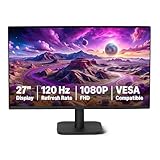
This is the fastest 27-inch screen in the roundup. A 1080p IPS panel at 120Hz with HDMI and DisplayPort, aimed squarely at office and home use, it suits buyers who want more screen area than 24 inches but do not want to give up the smoothest refresh rate available.
Key specs
- Screen size: 27 inches, diagonal
- Resolution: 1920×1080 (Full HD)
- Panel type: IPS
- Refresh rate: 120Hz
- Inputs: HDMI, DisplayPort
- VESA compatible
Strengths
Twenty-seven inches at 120Hz is a genuinely useful combination for mixed work and play. The extra area over a 24-inch screen means a document and a browser window fit comfortably side by side, and the 120Hz refresh rate keeps that larger canvas feeling responsive when you scroll or drag windows across it. On bigger screens, low refresh rates are more noticeable because the cursor travels further per swipe — 120Hz keeps that under control.
IPS keeps colour consistent across the panel, so the edges of a 27-inch screen look the same as the centre when you sit slightly off-axis. HDMI and DisplayPort cover modern laptops, desktops and docks without adapters, and VESA compatibility leaves the door open for a monitor arm — which is the upgrade most 27-inch buyers eventually want, because the bundled stand on budget panels usually offers tilt only.
Pros
- 120Hz on a 27-inch panel — the best combination of area and smoothness here
- IPS viewing angles keep the whole screen looking even
- HDMI and DisplayPort suit modern hardware
- VESA compatible for arm mounting
- Balanced feature set with no paid-for extras you may not want
Cons
- 1080p at 27 inches is softer than 24-inch 1080p
- No built-in speakers
- No VGA for legacy machines
- IPS contrast is weaker than VA in a dark room
How it compares with the nearest alternative
Compare this with the Philips 27″ FHD 100Hz VA (271V8LB), since both are 27-inch 1080p screens in the mid-range. The decision is panel technology and refresh rate. The Amazon Basics model gives 120Hz and IPS colour consistency; the Philips gives VA contrast, which looks markedly better for dark content, movies, and dim-room work. If you mostly move between apps and want the smoothest panel, choose the 120Hz IPS. If you watch a lot of dark video or read in low light, choose the VA.
6. Philips 22 Inch FHD 100Hz VA Monitor (221V8LB) — Best for the Smallest Desks and Tightest Budgets

At 22 inches, this is the smallest screen in the roundup and the one for genuinely constrained spaces: dorm rooms, studio apartments, narrow writing desks, and secondary displays beside a laptop. It keeps the 1080p resolution, adds 100Hz, and stays flicker-free.
Key specs
- Screen size: 22 inches, diagonal
- Resolution: 1920×1080 (Full HD)
- Panel type: VA
- Refresh rate: 100Hz
- VESA compatible
- Flicker-free, eye-care class
Strengths
Because the resolution stays at 1920×1080 on a smaller panel, pixel density is the highest or near-highest in this list — roughly 100 pixels per inch. Text, spreadsheets and web pages look distinctly sharp, and 1080p at 22 inches is comfortable to read at close range without leaning in. That makes it a strong choice for reading-heavy work, coding, and study.
The physical footprint is the other advantage. A 22-inch panel takes up roughly a third less desk width than a 27-inch model and far less than the 32-inch, which leaves room for a keyboard, mouse, notebook or laptop stand. VA contrast gives deeper blacks than IPS, so dark-mode coding environments and evening video look better than on a same-size IPS screen. The 100Hz refresh rate is well above the 60Hz panels that usually occupy this price tier.
Pros
- Highest pixel density in the roundup for crisp text
- Smallest desk footprint of any pick
- VA contrast suits dark interfaces and low-light use
- 100Hz is generous at this size and price tier
- VESA compatible and flicker-free
Cons
- Smallest screen area here — limited multi-window space
- VA viewing angles are narrower than IPS
- Not ideal as a primary gaming screen for competitive titles
- Fewer inputs than the Amazon Basics budget model
How it compares with the nearest alternative
The nearest rival is the Philips 24 Inch FHD 120Hz IPS (24E2N2100), the best overall pick. Both are Philips panels with eye-care features, 1080p resolution, and VESA mounting. The 22-inch model is sharper per inch and takes less desk space; the 24-inch gives more usable area, a faster 120Hz refresh rate, and IPS viewing angles. If your desk is under a metre wide or you sit very close, the 22-inch is the more comfortable screen. Otherwise the 24-inch is the better all-rounder.
7. Philips 27″ FHD 100Hz VA Monitor (271V8LB) — Best for Contrast-First Viewing

This is the mid-range contrast specialist. A 27-inch 1080p VA panel at 100Hz with VESA mounting and eye-care features, it is aimed at buyers who watch a lot of dark video, work in dim rooms, or prefer deep blacks over the widest viewing angles.
Key specs
- Screen size: 27 inches, diagonal
- Resolution: 1920×1080 (Full HD)
- Panel type: VA
- Refresh rate: 100Hz
- VESA compatible
- Eye-care class image processing
Strengths
VA contrast is the point of this monitor. Where IPS panels render dark scenes as washed-out grey in a dim room, VA holds deep, convincing blacks, which improves films, dark-mode editors, and night-time reading. On a 27-inch screen that difference is easy to see, especially with the lights off.
At 27 inches and 1080p the density sits around 82 pixels per inch — less sharp than the 24-inch panels, but with enough area for two windows side by side and no need for operating-system scaling. The 100Hz refresh rate keeps scrolling and window movement noticeably smoother than the 60Hz office screens still common at this size. VESA compatibility means you can add an arm and reclaim the desk space the wider stand occupies, which is a worthwhile upgrade for a 27-inch panel. Eye-care processing reduces flicker and blue-light intensity for long sessions.
Pros
- Strong contrast — the best dark-room experience in the mid-range group
- 27 inches gives comfortable two-window space
- 100Hz is smoother than standard office panels
- VESA compatible for arm or wall mounting
- Eye-care features for extended sessions
Cons
- VA viewing angles shift colour when sitting far off-centre
- Typically more dark-motion smearing than IPS
- Less sharp than 24-inch 1080p at the same resolution
- 100Hz rather than 120Hz
How it compares with the nearest alternative
The direct competitor is the Amazon Basics 27-inch 120Hz IPS. Same size, same resolution, mid-range tier — but different priorities. The Philips gives VA contrast and eye-care processing for dim rooms and dark content. The Amazon Basics gives 120Hz and IPS colour consistency for fluid window movement and off-axis viewing. Pick the VA if you watch films or work at night; pick the IPS if you want the smoothest panel and often have people looking over your shoulder.
How to Choose
Every decision in this bracket comes down to five trade-offs. Work through them in order and the right model usually selects itself.
1080p vs 1440p at 24 to 27 inches
This is the single biggest question, and it has a simple numerical answer. Resolution divided by screen size gives pixel density, which determines how sharp text looks.
| Resolution and Size | Approximate Pixel Density | Text Sharpness | Desktop Space |
|---|---|---|---|
| 1080p at 22 in | ~100 PPI | Very crisp | Limited windows |
| 1080p at 24 in | ~92 PPI | Crisp | Two windows, tight |
| 1080p at 27 in | ~82 PPI | Soft but readable | Two windows, comfortable |
| 1080p at 32 in | ~69 PPI | Noticeably soft | Three to four windows |
| 1440p at 27 in | ~109 PPI | Very crisp | Three windows, comfortable |
The plain fact is that 1440p at 27 inches delivers roughly the same sharpness as 1080p at 22 inches — about 109 pixels per inch against 100 — while also giving substantially more workspace. That is why 1440p 27-inch panels are the enthusiast default. The catch is price: 1440p hardware generally sits above the sub-$200 tier, especially once you add a high refresh rate. In this roundup every pick is 1080p, and that is deliberate — 1080p is what the sub-$200 bracket actually delivers in 2026.
So the practical rule is this. If your budget is firm and 1440p is out of reach, stay at 24 inches for 1080p unless you specifically need more area. Going to 27 inches at 1080p trades sharpness for space; going to 32 inches trades away a lot of sharpness for a lot of space. If you sit close — under about 60cm — 27-inch 1080p will look soft to you. At 70 to 80cm, it looks fine.
IPS vs VA contrast
These two panel types behave almost oppositely, and neither is universally better.
| Factor | IPS | VA |
|---|---|---|
| Contrast and black depth | Moderate; blacks look grey in dim rooms | Strong; deep, convincing blacks |
| Viewing angles | Wide; colour holds off-axis | Narrower; colour shifts off-axis |
| Colour consistency across panel | Even corner to corner | Some shift toward the edges |
| Dark-scene motion | Cleaner transitions | More smearing on dark moving detail |
| Best use | Shared desks, colour work, mixed lighting | Dim rooms, film, dark-mode work |
Choose IPS if more than one person uses the screen, if lighting in the room changes through the day, or if you do any colour-sensitive work such as photo touch-ups. Choose VA if you work at night with the lights low, watch a lot of film, or simply prefer deep blacks — and if you sit roughly centred to the screen. If you sit centred and mostly alone, VA’s narrower viewing angles cost you nothing.
75Hz vs 100Hz vs 120Hz
Refresh rate is how many times per second the panel redraws. Everything here is at least 100Hz, which is the important threshold. The jump from 60Hz to 100Hz is the largest perceptible improvement you will feel — cursor movement, scrolling, and window dragging all become visibly smoother, and it is immediately obvious when you switch back. The step from 100Hz to 120Hz is smaller but real, mostly in fast motion and quick cursor flicks.
Practically: if you are coming from an old 60Hz office screen, any 100Hz or 120Hz panel here will feel like a significant upgrade. If you are choosing between two otherwise similar models and one is 120Hz, take the 120Hz — the premium is usually small and the panel will stay satisfying longer. Budget buyers should not pay a large premium for 120Hz over 100Hz, but should avoid 60Hz entirely, because 100Hz hardware now sits at the same price.
Stand ergonomics for small budget desks
This is the most overlooked spec and the one that most often ruins an otherwise good purchase. Most budget monitors ship with a stand that offers tilt only. No height adjustment, no swivel, no pivot.
That matters because ergonomics are about geometry. With a fixed-height stand, the top of the screen should sit roughly at eye level when you are seated upright. If the monitor is too low, you spend the day looking down and your neck follows. If it is too high, you look up. A tilt-only stand gives you one fixed height and you adapt to it — which usually means stacking books underneath, which is unstable and looks terrible.
- Measure your desk depth first. A 32-inch monitor needs about 70cm of depth to sit at a comfortable arm’s-length distance. A 27-inch needs about 60cm. A 24-inch works from about 50cm. On a shallow desk, a big panel ends up too close.
- Measure the width you can spare. Budget: 22-inch panels occupy roughly 50cm of width; 24-inch roughly 54cm; 27-inch roughly 61cm; 32-inch roughly 72cm. Add space for a keyboard and mouse before you commit.
- Check for VESA mounting. Every product in this roundup is VESA compatible. That is the escape hatch: a basic monitor arm of the common 75x75mm or 100x100mm pattern replaces the bundled stand, adds full height, tilt, swivel and rotation adjustment, and frees the desk space the stand’s footprint was occupying. For a 27-inch or 32-inch screen on a small desk, an arm is often a better upgrade than moving up a size.
- Prefer tilt range over swivel. If you can only get one adjustment, get tilt. It lets you angle the panel to reduce reflections from a window or ceiling light.
- Budget for the arm in your total. A monitor plus a basic arm usually still lands under the cost of a larger panel, and it solves the ergonomic problem permanently.
The worked example: imagine a 120cm-wide desk that is 55cm deep, with a laptop and keyboard already on it. A 32-inch panel needs 72cm of width and about 70cm of depth — it will not fit comfortably, and you would end up too close regardless of the stand. A 27-inch needs 61cm of width and about 60cm of depth — still tight, and the bundled stand’s footprint eats into keyboard room. A 24-inch needs 54cm of width and works from about 50cm of depth, leaving usable space on both sides. For that desk, 24 inches is the correct answer, even if a bigger screen is tempting.
The upgrade path
Buy in this order, because each step is cheap and each one compounds.
- Step one: get the size and resolution right for your desk, as above. This is the decision you cannot fix later without buying a new monitor.
- Step two: add a VESA monitor arm. This fixes height, frees desk space, and usually costs less than moving up a screen size.
- Step three: add a second matching screen for a dual setup, if your desk can take the width. Two 24-inch 1080p panels give more usable area than a single 32-inch and keep the sharpness.
- Step four: only then consider resolution. 1440p is the meaningful long-term upgrade, and it is worth waiting for rather than compromising on size and panel type now.
One final note on inputs. If any of your devices is older — an office desktop, a projector, a dock with VGA — factor in the Amazon Basics 23.8-inch model that lists HDMI, DisplayPort and VGA. Buying an adapter later usually costs more than the difference between models.
Frequently Asked Questions
Is a 27-inch 1080p monitor too blurry for work?
It is not blurry, but it is softer than 24-inch 1080p — around 82 pixels per inch against roughly 92. At a viewing distance of about 70cm or more, most people find it perfectly readable for documents, spreadsheets and browsing. If you sit closer than 60cm, or if you are used to a high-density laptop screen, the difference will be visible and a 24-inch panel may suit you better.
Should I choose IPS or VA for a bright room?
IPS is generally the safer choice in a bright room with changing light and off-axis viewing, because colour stays consistent across the panel and angle. VA tends to show more colour shift toward the edges when you move off-centre. In a dim room, or if you sit centred and work mostly at night, VA’s deeper blacks are the more rewarding option.
Do I need 120Hz if I do not play games?
Yes, it is worth it. Even for office work, 100Hz or 120Hz makes cursor movement, scrolling, and window dragging visibly smoother, and the improvement over 60Hz is the largest single jump you will notice. Since 100Hz and 120Hz hardware now sits in the same price bracket as 60Hz office panels, there is little reason to buy 60Hz.
Can a basic stand cause neck strain?
A fixed, tilt-only stand can, because the screen height is not adjustable and the top of the panel often ends up below eye level. If you cannot raise the monitor, you end up looking down for hours. The fix is a VESA monitor arm, which adds full height adjustment and costs less than replacing the monitor. If your neck or back is persistently uncomfortable, speak to a health professional rather than trying to solve it with equipment alone.
How much desk space does a 32-inch monitor actually need?
Plan for roughly 72cm of width for the panel itself and about 70cm of depth so you can sit at a comfortable distance. The bundled stand’s footprint adds to the depth requirement, which is why a monitor arm often makes a large screen practical on a modest desk. On a desk narrower than about 120cm, a 27-inch or 24-inch screen is usually the better fit.
Is VESA compatibility important on a budget monitor?
It is one of the most valuable specs to check, because it makes every future ergonomic fix cheap. Every product in this roundup supports VESA mounting, which means an inexpensive arm can add height, tilt, swivel and rotation, free up the desk space the original stand used, and extend the life of the purchase.
Can I run two of these monitors from one laptop?
It depends on the laptop’s outputs. Most modern laptops and docks drive two 1080p screens at 60Hz or higher through a combination of HDMI and DisplayPort, or through a single USB-C dock with multiple outputs. Older machines may be limited to one external display. Check the number and type of video outputs on your computer — HDMI, DisplayPort or VGA — before buying a second screen.
How do I clean a monitor without damaging it?
Power the screen off and let it cool, then wipe gently with a soft microfibre cloth. For smudges, dampen the cloth very lightly with water or a screen-safe cleaner, and never spray liquid directly onto the panel. Avoid paper towels, abrasive cloths, and alcohol-based household cleaners, which can damage anti-glare coatings over time.
Final Recommendation by Situation
- Most people, most desks: the Philips 24 Inch FHD 120Hz IPS — the best balance of sharpness, smoothness and size in this bracket.
- Lowest budget or legacy hardware: the Amazon Basics 23.8-inch 1080P 120Hz, for its HDMI, DisplayPort and VGA inputs.
- Smallest desk or dorm room: the Philips 22 Inch FHD 100Hz VA, for the highest pixel density and smallest footprint.
- Shared family or living-room desk: the Amazon Basics 27 Inch FHD 100Hz IPS with speakers, for built-in audio and USB ports.
- Smoothest 27-inch panel: the Amazon Basics 27-inch 120Hz IPS.
- Dim rooms and dark content: the Philips 27″ FHD 100Hz VA, for the strongest contrast in the mid-range.
- Maximum screen area: the Philips 32 Inch FHD 100Hz VA, if your desk is at least 70cm deep and you value space over pixel density.
Whichever you pick, add a VESA monitor arm if your budget allows one more purchase. It is the cheapest way to make any monitor on this list genuinely comfortable.





Write Your Review
No reviews yet. Be the first to share your experience!